Designing a Better External Email Banner in Exchange Online
External email warnings are meant to protect users by giving them a clear visual indication when a message comes from outside the organization, encouraging them to be extra cautious. Microsoft gives Exchange Online admins an easy way to implement them with the Set-ExternalInOutlook cmdlet. It’s simple, but like most “easy buttons,” it comes with tradeoffs.
As email admins, we all have platforms our org uses and trusts that send emails on behalf of the org — messages we don't necessarily want flagged with an external warning banner even though they technically come from sources external to our email infrastructure. That’s where I find Microsoft’s implementation problematic. You can exempt specific senders from the warning using the -AllowList parameter, but it only checks the visible From address (aka 'header From' or 'P2' address). That’s trivial to spoof, and even if you’re okay with that risk, you can’t exempt entire domains with it, which makes it clunky and impractical at scale. On the spoofing aspect, you might be thinking, “Isn’t that what DMARC is intended to protect against?” True — but as a security professional, I’m a firm believer in defense in depth.
There may also be cases where you need to exempt specific recipients from the disclaimer because the mailboxes are monitored by automation platforms such as Power Automate or UiPath where the banner's presence causes issues - the MS option also doesn't accommodate this.
I wanted an external warning banner that offered a clean, accessibility-focused design as well as a secure, practical exception model. Microsoft’s native option didn’t cut it for me, so I built my own transport rule–based disclaimer approach instead.
Design Considerations: The Banner
A banner’s job is deceptively simple: grab attention without becoming noise. If it’s too loud, users ignore it, either consciously or subconsciously. If it’s too subtle, it gets overlooked. And if it’s inconsistent across clients, people stop trusting it.
Here’s what I focused on when designing it:
- Attention span: People don’t read walls of text. Three quick bullets is about the limit.
- Human behavior: The banner has to stand out, without turning into noise.
- Accessibility: Clean contrast and readable font. No reliance on color alone — it should work for everyone, including colorblind users and those with other visual impairments or simply older eyes. It also needed to look good in both light and dark mode.
- Clarity of language: Not every user is a native English speaker, and even native speakers skim. The text needed to be simple enough to work across language skills and reading levels.
- Consistency across clients: Outlook Desktop (classic and new), OWA, and Outlook mobile all render HTML a little differently. The design had to render cleanly and look the same in all of them.
- Space efficiency: Nobody wants a banner that doubles the height of every message. The layout is intentionally compact.
- Avoid duplicates: Prevent banners from stacking on replies or forwards where one already exists.
- Simplicity of management: A single transport rule handles everything. That does mean less configurability, but it also keeps the solution easier to manage and less error-prone.
- Color coding: Amber border signals caution without overstating the risk. It also leaves room for future banners with other severity levels — with red reserved for serious issues like authentication failures.
Final Banner Design
With those considerations in mind, here’s the HTML I settled on:
<table role="presentation" width="100%" border="0" cellspacing="0" cellpadding="0" style="mso-table-lspace:0;mso-table-rspace:0;">
<tr>
<td align="left" style="mso-table-lspace:0;mso-table-rspace:0;">
<!-- Width-capped container for comfortable line length -->
<table role="presentation" border="0" cellspacing="0" cellpadding="0" width="760" style="width:100%;max-width:760px;mso-table-lspace:0;mso-table-rspace:0;">
<tr>
<td style="mso-table-lspace:0;mso-table-rspace:0;">
<div dir="ltr" lang="en" role="note" aria-label="External email warning"
style="-webkit-text-size-adjust:100%;-ms-text-size-adjust:100%;-moz-text-size-adjust:100%;
mso-line-height-rule:exactly;border:2px solid #d79c2b;
padding:8px;background:transparent;color:inherit;
font-family:Arial,Helvetica,sans-serif;font-size:15px;line-height:1.5;">
<strong>⚠️External Email – Verify Before You Act⚠️</strong><br><br>
This email is from <strong>outside the organization</strong>.<br>
• Do not reply, click links, or open attachments unless you trust the sender.<br>
• If it appears to be from someone inside the organization, confirm via another method before taking action.<br>
• Report suspicious messages using the <strong>Report</strong> button.
</div>
<!-- Spacer: consistent gap below the banner in all Outlook clients -->
<div style="line-height:0;font-size:0;" aria-hidden="true">
<table role="presentation" border="0" cellpadding="0" cellspacing="0" width="100%" style="mso-table-lspace:0;mso-table-rspace:0;">
<tr><td style="height:8px;line-height:8px;font-size:8px;"> </td></tr>
</table>
</div>
</td>
</tr>
</table>
</td>
</tr>
</table>Banner Example
Here’s how the banner renders in Outlook — consistent across desktop, web, and mobile:
Light mode 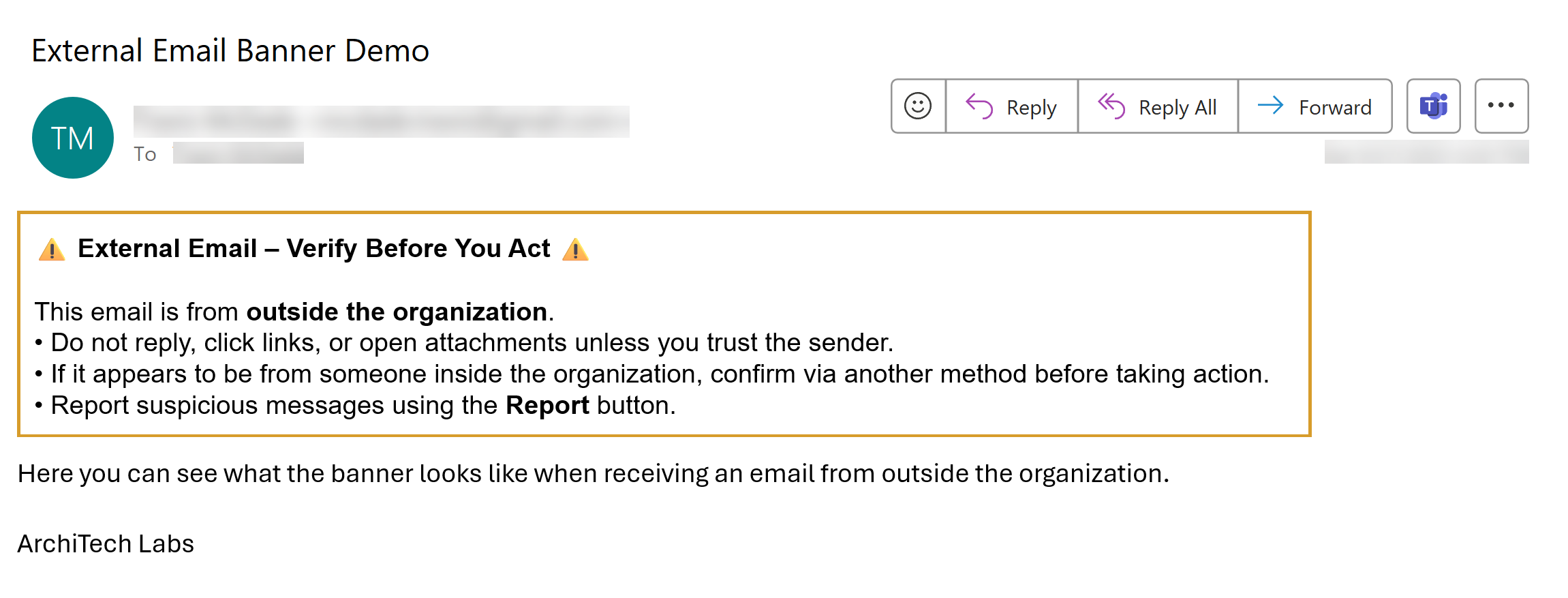
Dark mode 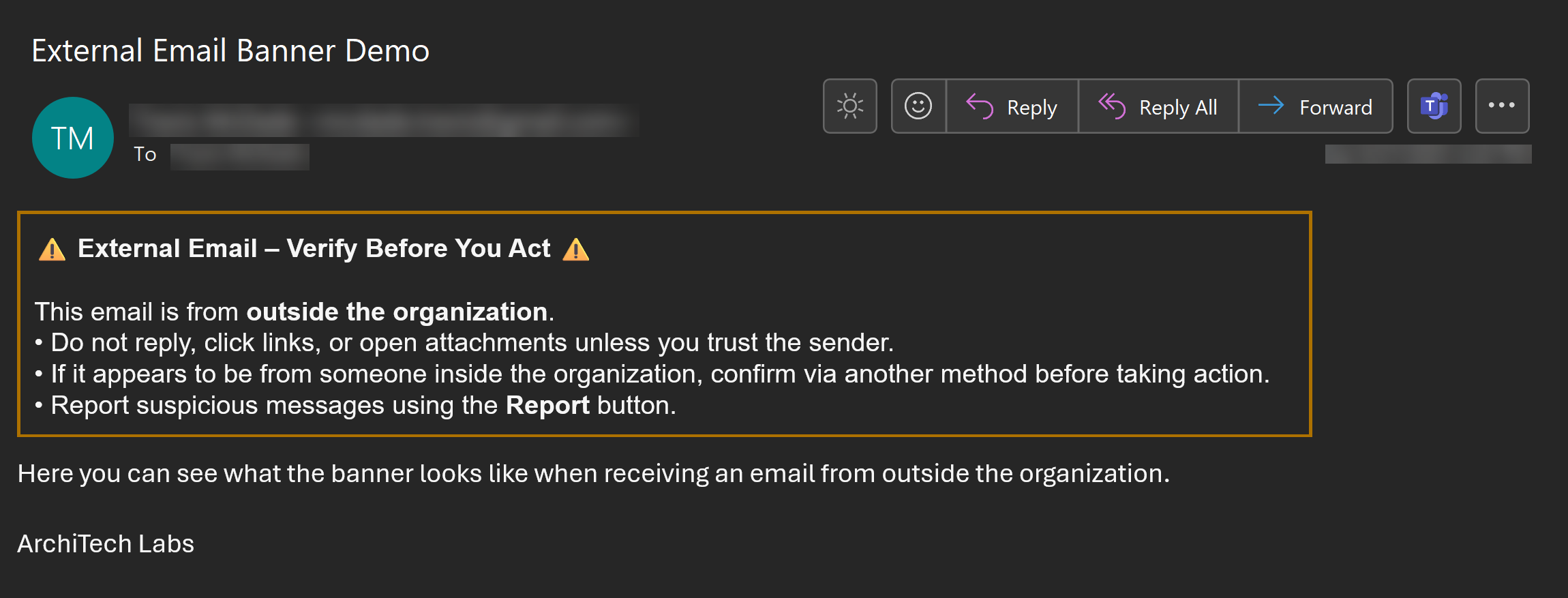
Design Considerations: Exceptions
The other half of this equation is when not to show the banner. Microsoft’s method (Set-ExternalInOutlook) relies on a sender allowlist - if the From address is trusted, the banner doesn’t appear. To me, that’s dangerous. Attackers routinely spoof trusted senders, which makes this model weak by design.
My approach ties exceptions to authentication results. That means the sender has to prove they're legitimate with a higher degree of confidence before the banner is skipped.
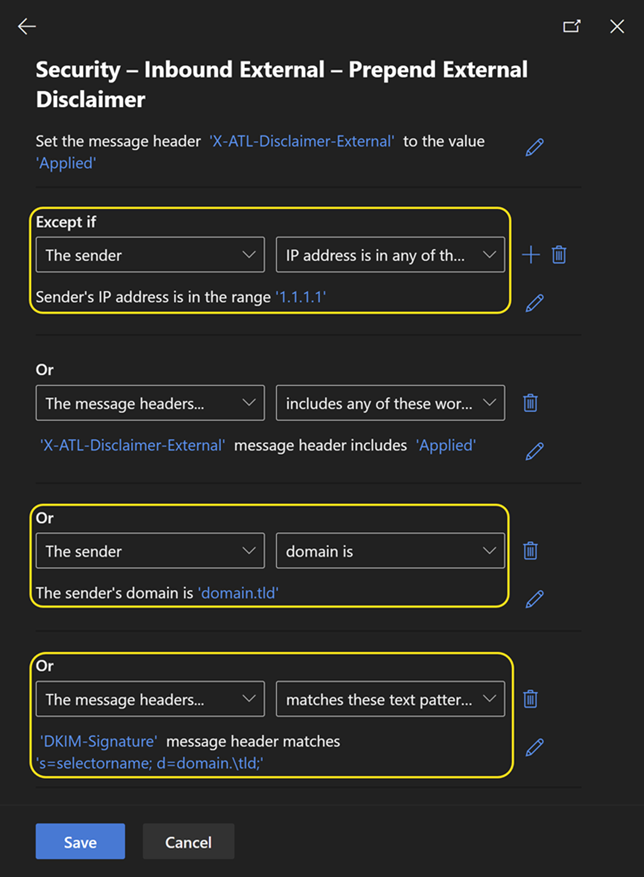
Here’s the priority order I use for exemption criteria:
| Priority | Method | Why it’s safer |
|---|---|---|
| 1 | DKIM-Signature Header | Cryptographic signature matches a trusted selector/domain pair |
| 2 | Sender IP Address | Confirms mail originates from trusted IP(s) |
| 3 | Sender Domain (aka 'Return-path', 'Envelope From', or 'P1' domain) | More difficult to spoof than the header From |
It’s a little more work than a static sender allowlist — but it’s a also more difficult for an attacker to abuse. I’d rather maintain a transport rule than hand attackers an easy bypass.
Rule Exceptions Example
Rule Configuration Highlights
Suggested rule name: Security – Inbound External – Prepend Disclaimer
- Apply if: Recipient is located InOrganization, Sender is located NotInOrganization
- Do the following: Prepend disclaimer (see HTML above); set header
X-ATL-Disclaimer-External: Applied - Fallback: Wrap
- Except if: Header already contains
X-ATL-Disclaimer-External - Priority: 0
- Mode: Enforce
- Match sender address: Envelope
- Comments: Appends disclaimer on all inbound external mail. Adds X-ATL-Disclaimer-External header to mark processing and prevent dupes. Exceptions only via auth results (DKIM > SPF > Return-Path). Focused on accessibility, consistency, security, and usability.
Create the Rule with PowerShell
I’ve published a simple script that will create this transport rule for you without all the manual clicking around in the Exchange Admin Center.
Note: Be sure to adjust the provided variable values as you'd like prior to deploying, as well as any org-specific reporting expectations if you don't use the native Report button. The script does not create exceptions - those can be created manually in the GUI, or you can fork the script and modify it as you see fit.
Takeaway
If you need an external mail warning in Exchange Online:
- Skip the native
Set-ExternalInOutlook. - Use a transport rule that prepends a disclaimer banner with clean, accessible design built for both human behavior and technical accuracy.
- Base your exceptions on authentication results, not sender strings.
It’s not perfect - EXO transport rules have their share of quirks and limitations - but this model provides a better user experience and raises the bar for security.
Acknowledgments
The post Accessible External Email Warnings on To The Cloud and Beyond made me step back and think about accessibility in a more intentional way. Even as someone who’s colorblind, I hadn’t really factored accessibility into banner design before reading it.